The International Trade Blog  Export Forms
How to Complete an Electronic Certificate of Origin in Shipping Solutions Export Software (Video)
On: March 11, 2026 | By:  Lisa Nemer |
16 min. read
Lisa Nemer |
16 min. read
 Shipping Solutions now includes the ability to get a Certificate of Origin certified by a chamber of commerce right from the software.
If you are used to manually creating your certificate of origin, delivering it to a local chamber, waiting for it to be reviewed, signed and returned to you and then sending it to your customer, you can save a lot of time, and probably money, by completing your certificates of origin through Shipping Solutions.
Shipping Solutions works with the American World Trade Chamber of Commerce (AWTCC) located in New York. The AWTCC is a member of the International Chamber of Commerce and uses their guidelines as well as United States best practice policies as its authority on procedures and instructions for issuing Certificates of Origin.
The AWTCC can also certify other documents for you such as Commercial Invoices and Bills of Lading. The cost for each certified document is $50. Shipping Solutions Annual Maintenance Program (AMP) subscribers pay only $25 per certified document.
Watch the video below to learn how to take advantage of the Electronic Certificate of Origin feature in Shipping Solutions.
How to Complete an Electronic Certificate of Origin using Shipping Solutions Video
Video Transcript:
Shipping Solutions Export Documentation & Compliance software offers a fast and easy way for exporters to get a Certificate of Origin certified by the American World Trade Chamber of Commerce, whose seal is registered with customs authorities worldwide. Rather than creating a paper certificate and taking it to a chamber to be certified, Shipping Solutions allows you to use the information you already have entered in the software, upload it to the chamber, and have a chamberized certificate delivered to you either electronically or by courier.
To get started, register for the service on the Shipping Solutions website. Within about two business days, you will receive an email from the chamber with instructions for setting up your password. Your email address along with this password allows you to login to the American World Trade Chamber of Commerce’s portal and to upload the information to the portal via Shipping Solutions.
In Shipping Solutions go to the Admin tab, Profile Settings screen and enter your Email address and Password in the eCO Login box.
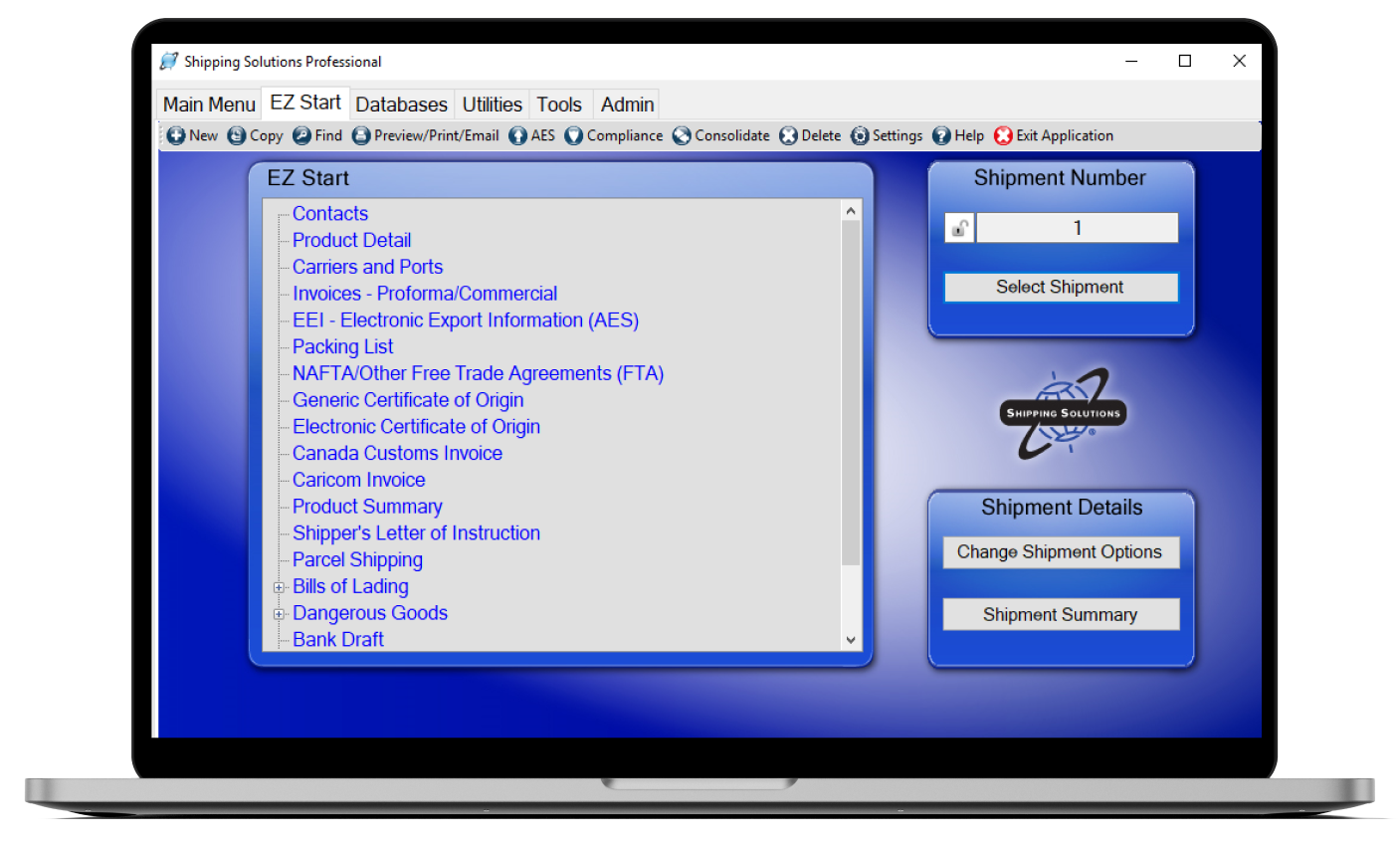
Create your shipment as you normally would on the EZ Start screen and save the Commercial Invoice as a pdf. Then on the EZ Start tab, click on Electronic Certificate of Origin.
Most of the information on the Electronic Certificate of Origin screen is pulled from screens on the EZ Start tab and cannot be modified on this screen.
You can use the Order Number, PO Number or Commercial Invoice Number as a reference for your Certificate of Origin. Those numbers are entered on the Invoices screen. Pick the one you want to use.
The Exporter and Ultimate Consignee are pulled from the Contacts screen.
Each Country of Origin you entered for your line items on the Product Detail screen will be combined into this box.
Transport Details are pulled from the Carriers and Ports screen. This box is optional.
Remarks are pulled from the Invoices screen, Commercial Invoice Special Instructions field.
This box includes line items you’ve entered on the Product Detail screen. You can control what information is included by using the check boxes below the box. If you want your line items separated by line breaks, check the Line Breaks box.
The Quantity box adds up the Gross Weight and Net Weight of all your line items. The weights are entered on the Product Detail screen.
The Comments for Chamber box is the one box you can type in on this screen. Enter any information you want to communicate to the chamber. I’m going to note that this is a test.
You must attach a PDF version of your Commercial Invoice that shows the countries of origin for each line item. Choose Commercial Invoice in the Document Type box and click Attach Document. Navigate to where you saved the PDF of your Commercial Invoice and click Open. If you also want the chamber to certify your Commercial Invoice, check the certify box next to the document. In addition, you can attach other documents for the chamber to certify. Just choose the Document Type and click Attach Document. Each document that you have certified adds to the cost.
When everything is completed click Submit eCO. A box will pop to let you know if your application was successfully submitted.
Now login to the chamber of commerce portal. Go to the Shipping Solutions website and under Customer Logins select Chamber Certification Portal. Login with your email address and password you established earlier.
You will see your application on the Active Applications screen. Click on it to review your application. Click Preview to see what your certificate will look like and it also shows a preview of the invoice you uploaded. Make any needed changes.
In the Application Details box choose your processing method. To get an electronic copy of the stamped certificate of origin, choose the first button. You will print the certificate yourself. Choose the second button if you want the chamber to ship the certificate to you. Shipping fees will be added to your cost. Choose the third option if you need the certificate legalized and enter instructions in the box. Additional fees will also be added for that option.
Click Submit Application.
Enter your credit card information. You can request that the credit card be saved for future submissions. If you requested to have the chamber print and send the certificate to you then you will also be asked for your shipping information. Click Submit Application.
On the Active Applications screen you will see a list of your applications and the status of each. Once you have submitted it, the status will be At Chamber.
After the chamber has reviewed your application, you will receive an email saying your electronic Certificate of Origin application has been approved or rejected. If your application is rejected, the email will include details of what changes are needed. Log back into the portal, find your application on the Active Applications screen, make the needed changes and resubmit your application.
If your application was approved, you’ll find your approved application on the Active Applications screen. Click Issue in the Action column to see and print your certificate.
Once the Issue button has been clicked, it moves from the Active Applications screen to the History screen. There is a Print button on the History screen in case you need to print the certificate again.
Like what you read? Join thousands of exporters and importers who subscribe to Passages: The International Trade Blog. You'll get the latest news and tips for exporters and importers delivered right to your inbox.